How I Use NFC Tags with Homebox to See What’s Inside Storage Boxes
I use Homebox to keep an inventory of items around my home. One of its most useful features is its support for nested locations, which lets me recreate the way things are physically stored.
For example, part of my Homebox structure looks like this:
- Home Office
- Wall Cupboard
- Box 01
- Box 02
- DVD Box 01
- DVD Box 02
- Drawer 01
- Drawer 02
- Wall Cupboard
Each box or drawer is created as its own Homebox location. The items inside it are then assigned to that location, usually with a photograph.
I have taken this a step further by sticking a rewritable NFC tag to each storage box. Scanning the tag with my phone opens the corresponding Homebox location, showing me everything stored inside.
This means I can check the contents of a box without removing it from the cupboard, moving other boxes or opening it.
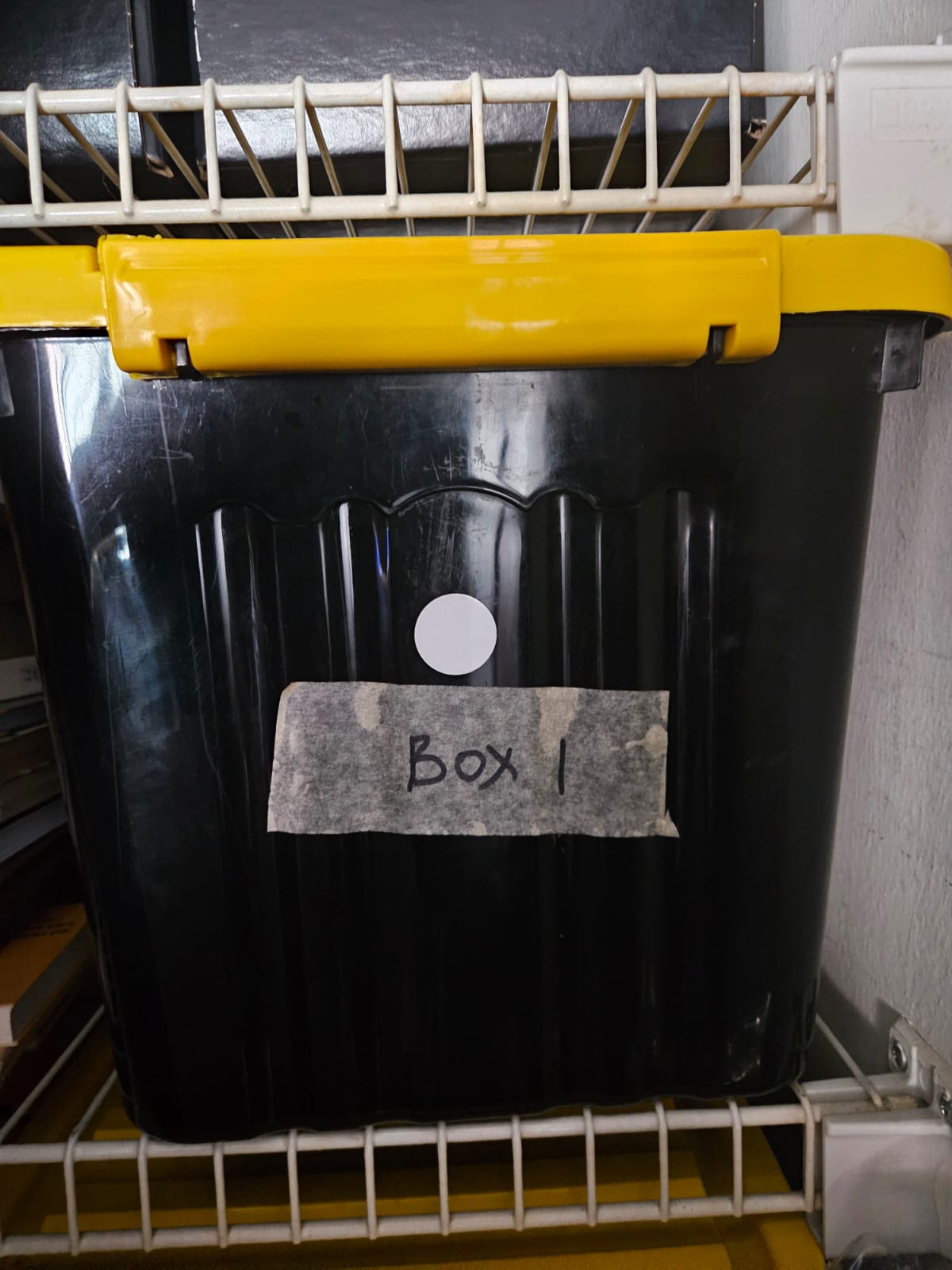
A photo of my Storage Box 01 with NFC tag attached in my Wall Cupboard.
What this setup does
The NFC tag does not contain the inventory itself. It contains a link to the appropriate location in Homebox.
When I scan a tag, my phone opens a page similar to:
https://homebox.example.com/location/...
That page displays the items assigned to the box in Homebox.
The arrangement is particularly helpful when several boxes are stacked together. Instead of pulling them out and looking inside each one, I can scan the tag and immediately see whether I have found the right box.
Some of my boxes contain a mixture of items, ranging from binoculars to a fluffy toy mascot. Others have a more specific purpose. My DVD boxes, for example, contain DVDs that are individually listed in Homebox with photographs of their covers—even if I may never watch some of them again.
What I use
My setup consists of:
- A self-hosted Homebox installation
- An Android phone with NFC
- The NFC Tools application by wakdev
- Rewritable adhesive NFC tags
- A separate Homebox location for each physical box or drawer
I originally bought a pack of 120 NFC tags. The exact pack I purchased is no longer available, but similar rewritable adhesive tags are easy to find.
View similar rewritable NFC tags on Amazon UK (affiliate link)
The tags at that link are similar to mine, but they are not the exact tags I purchased and I have not personally tested them. Before ordering, check that they are rewritable and compatible with your phone.
Step 1: Create the storage box in Homebox
I create each physical storage box as a separate location in Homebox.
My boxes sit underneath their real parent locations. For example:
Home Office
└── Wall Cupboard
    ├── Box 01
    ├── Box 02
    ├── DVD Box 01
    ├── DVD Box 02
    ├── Drawer 01
    └── Drawer 02
This structure tells me both what an item is stored in and where that container is located.
I use simple names such as Box 01, DVD Box 01 and Drawer 01. The names do not need to describe everything inside because Homebox provides the detailed inventory.
Step 2: Add the items
I add the contents of the box to Homebox and assign each item to the box's location.
Where useful, I also add a photograph. This can make an item much easier to recognise, particularly when Homebox contains several similar objects.
I normally finish itemising the contents before writing the NFC tag, although the location can be updated later without rewriting the tag. As long as the Homebox location link remains the same, newly added or removed items will automatically be reflected when the tag is scanned.
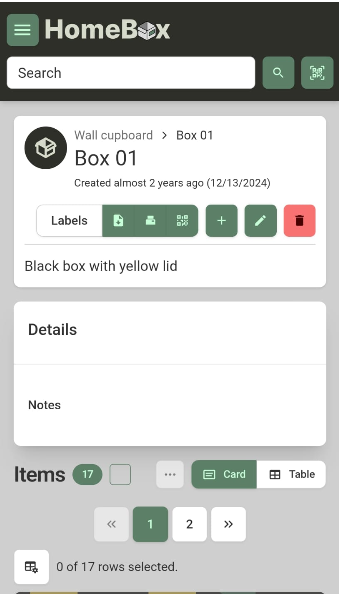
Scanning the NFC tag took me to the Box 01 page with a list of the 17 items inside the box.
Step 3: Copy the Homebox location link
On my Android phone, I open Homebox and navigate to the location representing the storage box.
I then:
- Find the storage box in the Homebox location list.
- Long-press its link until the browser menu appears.
- Select Copy link address.
This copies the direct address of that particular Homebox location rather than merely copying the Homebox homepage.
Before writing the tag, it is worth pasting the copied address into a browser to confirm that it opens the intended box.
Step 4: Write the link to the NFC tag
I use NFC Tools by wakdev on Android to write the Homebox address to the tag.
In NFC Tools, I:
- Open the Write page.
- Select Add a record.
- Choose the option for a URL or web address.
- Paste the Homebox location link.
- Confirm the record.
- Select Write.
- Hold the phone over the NFC tag until NFC Tools confirms that it has been written successfully.
The precise position of the NFC reader varies between phones. On my phone, I move the back of the phone slowly over the tag until it is detected.
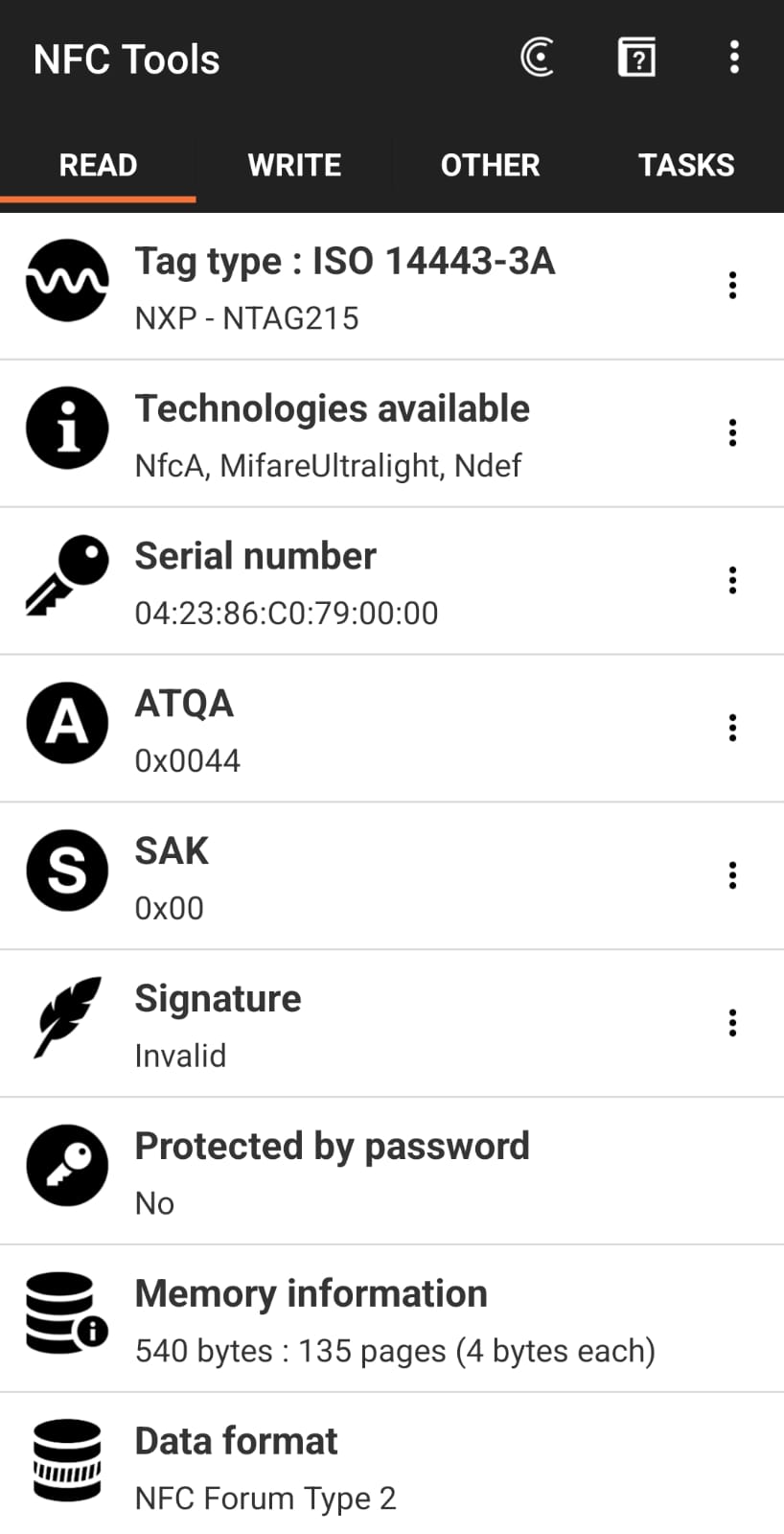
Some of the information shown on a screenshot of the Box 01 URL record in NFC Tools.
Step 5: Test the tag
I close NFC Tools before testing the tag. This helps confirm that the phone handles it as a normal NFC scan rather than as part of the writing process.
I then hold the phone over the tag and check that:
- The phone detects the NFC tag.
- The browser opens Homebox.
- Homebox displays the correct storage-box location.
- The expected inventory items appear.
Only after that test succeeds do I stick the tag permanently to the box.
Testing first matters. It is much easier to rewrite or replace a loose tag than one that has already been attached in the wrong place.
Step 6: Position the tag carefully
I attach the tag somewhere that is easy to reach with my phone while the box is still in its storage position.
There is little benefit in putting the tag on the back or underside if I must remove the box to scan it. On boxes stored in a cupboard, the front or an accessible part of the lid usually makes more sense.
I also try to keep tags away from metal objects or metal surfaces because these can interfere with ordinary NFC tags. Tags intended for use directly on metal are available, but standard adhesive tags may not scan reliably in that situation.
Local address or reverse proxy?
My Homebox installation is available through a reverse proxy at a dedicated HTTPS subdomain. This means the links stored on my NFC tags work even when my phone is not connected to my home Wi-Fi.
A typical link might look like:
https://homebox.example.com/location/...
For storage boxes that never leave home, an internal address could also work:
http://192.168.x.x:port/location/...
The internal option avoids exposing Homebox through a public domain, but the phone must be connected to the home network for the link to work.
The reverse-proxy option is more flexible. It would continue to work if I stored boxes at more than one address, provided Homebox remained reachable over the internet.
Whichever method is used, the address written to the tag must be accessible from the phone that scans it.
If Homebox is made available through a reverse proxy, it should be protected with HTTPS, a strong password and normal security precautions. Homebox and the reverse proxy should also be kept updated.
What happens if I am logged out?
The NFC tag contains a link, not my Homebox username or password.
I tested this by logging out of Homebox, closing it and then scanning a tag. Homebox displayed its login page. After I signed in, it took me directly to the storage-box location from the NFC tag.
This is the behaviour I want. The tag provides quick access to the correct page without bypassing Homebox authentication.
It also means that anyone scanning the tag does not automatically gain access to my inventory. They would still need valid Homebox login details.
However, the URL itself can be read from the NFC tag, so I would not treat the tag as a place to store confidential information or credentials.
Updating a tag
My NFC tags are rewritable. If I change the Homebox address or reorganise the locations, I can use NFC Tools to replace the link stored on a tag.
The process is essentially the same:
- Open the Write page in NFC Tools.
- Create a new URL record containing the replacement link.
- Select Write.
- Scan the existing tag.
- Test it again before returning the box to storage.
I deliberately leave the tags rewritable rather than permanently locking them. This gives me the option of reusing a tag if I rename, move or repurpose a box.
If I only change the items inside a box, I do not need to rewrite its NFC tag. The link still points to the same Homebox location, and the updated contents appear automatically.
What about iPhones?
I use Android, so the procedure in this guide reflects what I have tested myself.
Modern iPhones can read NFC tags, and NFC-writing applications are available for iOS, so a similar setup should be possible. However, the exact writing and scanning procedure may differ, and I have not tested it on an iPhone.
Why I prefer this to ordinary labels
A printed label can identify a box, but it cannot show everything inside it unless I keep rewriting the label or attach a long list.
The NFC tag gives me a live view of the Homebox location instead. If I move an item into or out of the box and update Homebox, the next scan shows the revised inventory without any change to the physical tag.
I still give each box a simple name such as Box 01. This makes the physical box easy to match with Homebox and provides a fallback if NFC is unavailable.
The combination works well:
- The box name identifies the physical container.
- Homebox maintains its inventory.
- The NFC tag connects the two.
Limitations
This system depends on a few things working:
- The phone must support NFC and have it enabled.
- Homebox must be running.
- The Homebox address must be reachable from the phone.
- The user must be able to log in to Homebox.
- The NFC tag must be positioned where it can be scanned.
- The Homebox location should not be deleted or replaced without updating the tag.
It also depends on keeping the Homebox inventory reasonably current. If I remove something from a box without updating Homebox, the NFC tag will still work perfectly—but the information it displays will be wrong.
The tag makes the inventory easier to access; it does not maintain the inventory for me.
Is it worth doing?
For boxes that I open frequently or that contain only one obvious type of item, an NFC tag may be unnecessary.
It is much more useful for boxes that:
- Contain a mixture of unrelated items.
- Are stacked behind or underneath other boxes.
- Are difficult to open in their normal storage position.
- Contain collections that benefit from individual photographs.
- Are stored somewhere that makes checking their contents inconvenient.
The tags were inexpensive, take only a few minutes to configure and can be rewritten later. For my Homebox setup, they provide a simple connection between a physical storage box and its digital inventory.
Instead of taking boxes out of the cupboard and opening them one by one, I can scan a tag and see what is inside.